Views (Admin)
File Manager
The File Manager is "simple-file-manager", originally by John Campbell, forked by Github user "diego95root", and modified by Les Arbres Design to run securely under Joomla administrator authorisation. It is very small, yet can perform the basic functions needed for remote support. There are plenty of file managers with more features, but they tend to be big, and many include base64 encoding that we can't read and don't trust. We chose "simple-file-manager" because it is an active project on Github, and because the code is small enough to read and verify.
Database Manager
The Database Manager is "PHP Mini MySQL Admin" by Oleg Savchuk. It is also small and light, yet can perform the basic functions needed for remote support. It has also been modified by Les Arbres Design to run securely under Joomla administrator authorisation, and to automatically login to the database server using the login credentials of the current Joomla site.
When you first start the Database Manager, select a database from the dropdown list, or click the "Show tables" link, just to its right.
Icon Classes
Shows a list of icon classes available in the current Joomla system. These classes can be used to place icons on toolbar buttons in the admin views of a component, for example:
JToolBarHelper::custom('picture', 'camera', '', "Picture");
Or they can be used to simply show an icon:
echo '<span class="icon-camera"></span>';Javascript Minifier
Paste your Javascript code into the upper text box, select one of the options and click the Go button. The minified code appears in the lower text box.
REGULAR EXPRESSIONS
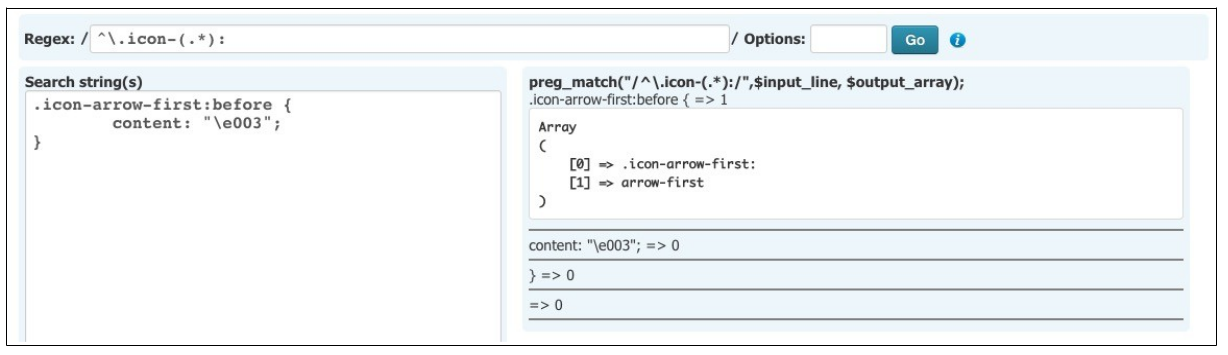
Enter a regular expression in the top box. Enter any number of test expressions in the left text area, and click the Go button. The results from the PHP preg_match( ) function are shown on the right hand side. Hover over the (i) button for a regular expression quick reference guide.
Time Functions
Shows the results of various time functions. By default the page uses the current time and timezone of the server. You can select a different timezone from the list, and/or enter a specific unix time value to use.
URL Functions
Shows the value of JURI::root( ) and JURI::root(true) on the current server. The URL field allows you to enter any URL and see the results returned by various methods of retrieving the URL.
IP Location
Retrieves the IP address of the incoming request, and the IP address as reported by http://ipecho.net/. If you are running Joomla on a local network, the first address will be the IP address of your computer on the local network, and the second will be your external internet address. If you are running Joomla on an external web server, the first address will be your external internet address, and the second will be the address of your web host.
API Keys
Click the Options button to save (free) API keys for ipinfodb.com, Google Maps and/or Mapbox. 
Geolocation
If you have saved an ipinfodb.com key you can use this page to geolocate IP addresses. Your IP addresses is defaulted into the IPaddress field, but you can enter any IP address here before you click the Go button. When you click Go, the location data is retrieved from ipinfodb.com.
If you saved a Google Maps API key or a Mapbox API key, a map of the IP address location is shown. If you save both keys, Mapbox takes precedence.
Run PHP Code
This option lets you type in PHP code, click the Go button, and see the results. It can be a very quick way to experiment with small pieces of self-contained code running in the Joomla admin context. If the CodeMirror editor is installed and enabled, you can select to edit your code with CodeMirror and benefit from its PHP syntax highlighting.
As an example, paste the following into the Input Code box and click Go:
$db = JFactory::getDBO();
$query = "SELECT * FROM `#__content` ORDER BY `hits` DESC LIMIT 20";
$db->setQuery($query);
$rows = $db->loadObjectList();
foreach ($rows as $row)
echo $row->title.' - '.$row->hits.'<br />';
Or this:
$output = `whoami`;
echo "$output";
Site View
This view uses iframes and requests to the front end of the site to show the front end session and user data structures.
It's very useful to be able to see these structures when developing extensions that use them.
The Clear button on the Front End Session tab deletes the front end Joomla session record. You'll be able to see how your front end responds after, for example, a session timeout.
File Locking Tests
The tests executed by this option examine the functioning of the PHP flock() function, which can be problematic on some servers.
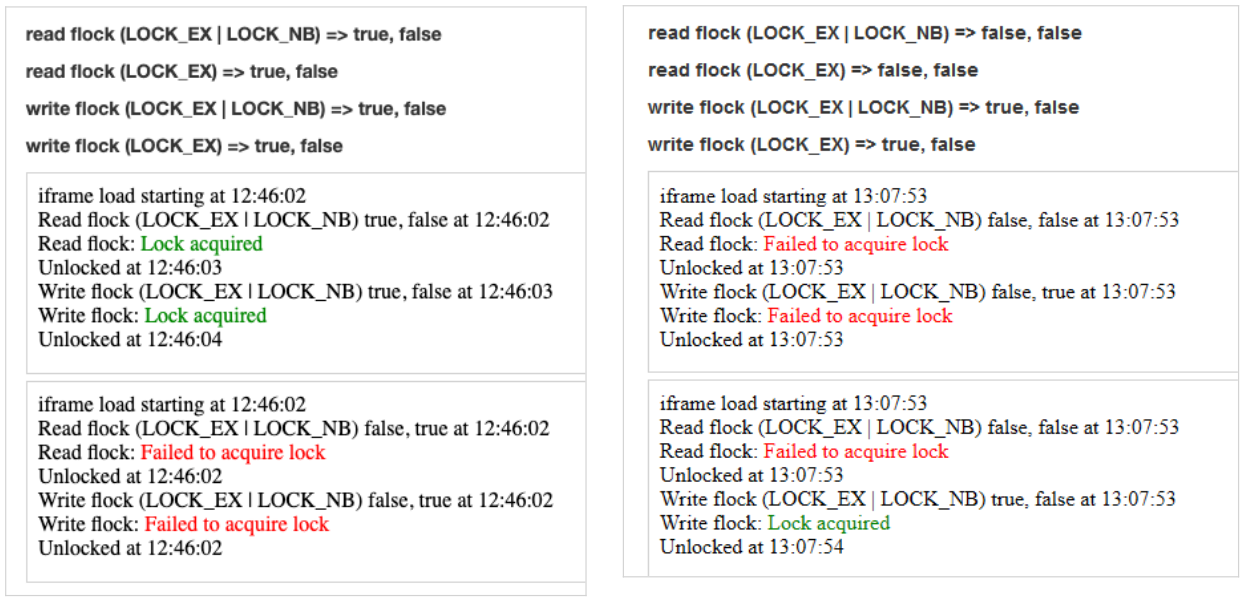
In the first part of the test, a temporary file is created and opened, and four calls are made to flock() while the file is not locked.
- With LOCK_EX | LOCK_NB when the file is opened for reading.
- With LOCK_EX when the file is opened for reading
- With LOCK_EX | LOCK_NB when the file is opened for writing
- With LOCK_EX when the file is opened for writing
The two boolean results are the return value of flock() and the value of the $wouldblock parameter.
In the second part of the test, two asynchronous iframes are opened, both attempting to acquire an exclusive lock on the file. One iframe should succeed in acquiring the lock, the other should fail. The iframe source attempts the lock with the file opened first for reading and then for writing.
The left hand screenshot shows the tests running on a Linux server, where flock() works equally well with the file opened for reading or writing.
The right hand screenshot shows the tests running on a SunOS server, where flock() does not work at all with the file opened for reading, but does work when the file is opened for writing.
Form Testing
This option is for testing Joomla form features and field types. It's very useful for testing custom fields.
On the XML File tab, enter a Joomla Form definition, and click Save.
On the Rendered Form tab, the saved form is rendered. You can enter some data here and click Submit.
On the Post Data tab, you see the data retrieved from the form.