Taking Payments for User Points
UserPoints includes support for users buying points with real money via the Payage payment component. Work through the following steps to set it up.
1. Install Payage
Install the Payage component and at least one payment plugin. Payage is available from the Remository download store. After installation, go to System → Extensions in the Joomla administrator and confirm that all Payage items are published.
2. Configure a Payment Method
PayAge handles the actual payment processing. Set up your chosen payment gateway through the PayAge admin interface — refer to the PayAge User Guide for gateway-specific instructions.
3. Configure UserPoints
In Components → UserPoints → Configuration → Exchange Points, set:
- Currency for Purchases — select the currency your payment gateway accepts.
- Table of Rates - You can create a table of rates, so that bigger purchases get more points.
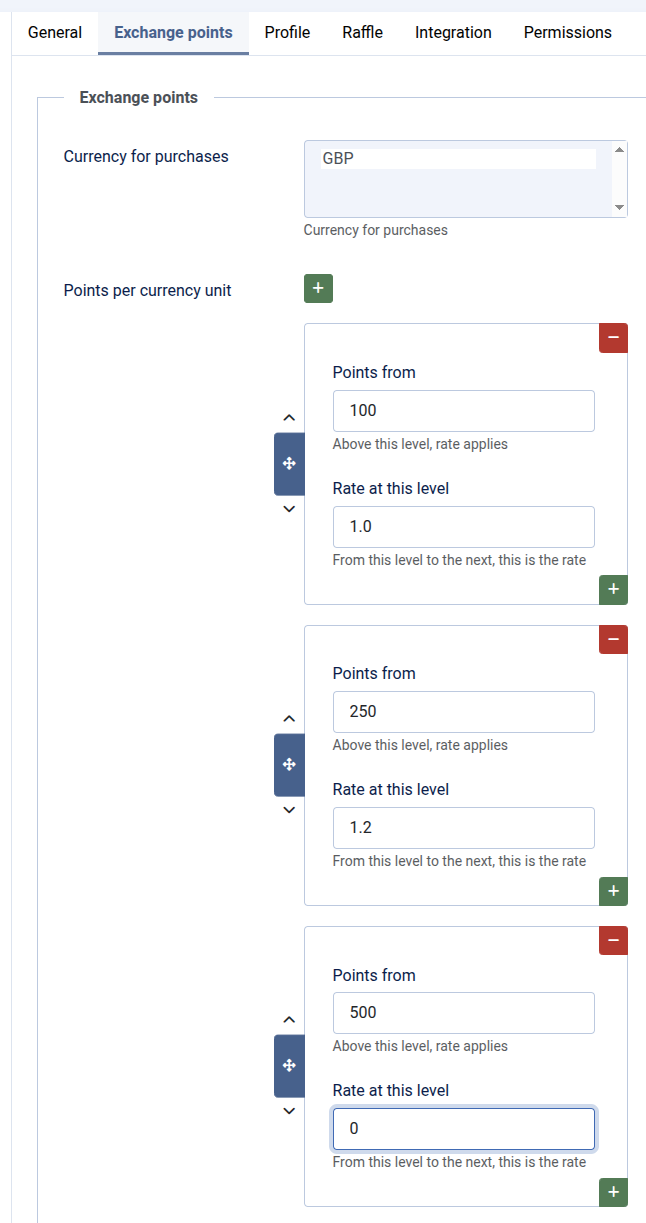
You can create as many entries as you wish. The first entry sets the lowest number of points that can be purchased, and the number of points per currency unit. The rate applies up to the next table entry. That sets the starting point for another value of points per currency unit. If you set a final table entry that has zero as the number of points per currency unit, then that will be treated as the maximum number of points that can be purchased.
For the example shown above, at least 100 points must be purchased, at a rate of 1 point per currency unit. For 250 points or above, the user will get 1.2 points per currency unit. The maximum number of points to be purchased is 500, although there is currently nothing to stop a user making more than one purchase.
4. Create a Menu Item
Create a Joomla menu item pointing to UserPoints → Purchase. This is the page users visit to choose how much to spend.
Payments can only be made by logged-in users. If a guest visits the purchase page, UserPoints displays an error and redirects to the login page.
5. Test the Flow
Run a test purchase with a small amount. Successful transactions appear in Components → UserPoints → Activities as an activity using the sysplgup_buypoints rule. You can also view full transaction details and issue refunds from the PayAge admin interface.
Selling Fixed Point Packages
In addition to the open-ended purchase form, there is a Buy Points module (mod_userpoints_buy_points) that presents users with a menu of pre-defined purchase options. You can deploy this module multiple times to offer different packages at different prices.
To use the module exclusively (hiding the standard "how much do you want to spend?" form), enable Suppress Purchase Details in UserPoints → Configuration → General. Users will then see only the module-defined packages.
See the Modules page for the Buy Points module parameters.
NOTE FOR PayPal
If you use PayPal, then a purchase attempt will result in an empty popup that does not go away. (It can be closed). Behind it is the actual PayPal popup box that you will have seen many times. To make the blank popup disappear of its own accord, you need to modify an option in a Joomla plugin - System HTTP Headers. The option "Cross-Origin-Opener-Policy" needs to be changed from its default value to be "same-origin-allow-popups". With that setting the blank popup appears with a progress indicator and then disappears of its own accord.