Extra Options
The Google Charts API has far too many options for them all to be accommodated in a reasonable user interface, and they are continually being added to. So Plotalot just shows a manageable number of options that can satisfy many common needs, but it does not stop you from using the full power of the Google API. The Extra Options field can be used to add additional Google Charts options to a chart, or override the options chosen by Plotalot. All of the options are described in the Google Charts API documentation.
To find the relevant options, go to the Google Chart Gallery, then click on the chart type you are working with, and scroll down to "Configuration Options". Some options are common to several charts, but it's always best to look at the options for the specific chart you are dealing with.
Plotalot will quite happily work with many options that we have never tried, or even heard of. However, please note that we can't guarantee it will work with every option.
Please don't ask us questions about Extra Options. We have some experience of some of the options, but we don't know about all of them. The correct place to ask detailed questions about API Options is:
https://groups.google.com/forum/#!forum/google-visualization-api
Option Syntax
The format of the Extra Options field is critical. Any errors will cause a Javascript error, and the chart will not be drawn.
Plotalot's main job is to construct the Javascript that will draw your chart. You can see the Javascript constructed in the Script tab. Part of the script is the options. Here's an example from one of the sample charts. We have re-formatted it to make it easier to read.
    var options = {
    title:'Sample Stacked Bar Chart',
    width:1200,
    height:400,
    backgroundColor:'#E6E5E5',
    titleTextStyle:{color:'#0000FF'},
    isStacked:true,
    series:[{color:'00CC00'},{color:'FFFF00'},{color:'FAA500'}],
    legend:{position:'bottom'},
    hAxis:{title:'',gridlines:{count:16},format:'#,##0'},
    vAxis:{title:'',gridlines:{color:'transparent'}}
    <extra options are added here>
    };
Plotalot chooses the options and parameters to add based on your selections in the chart editor. Each option is separated by a comma. Any extra options are added at the end of the options chosen by Plotalot. When you add extra options, you must always place a comma before each new option, to separate it from the previous option. You must not place a comma after the last option because it will cause an error in some older browsers.
Simple Options
Let's examine the options shown above in detail. Some options are easy, for example:
title:'Sample Stacked Bar Chart'If you look up the "title" option in the Google documentation, you will see that it is described as a "string". String values must be enclosed in single or double quotes.
Width and height are numbers. They do not need quotes. isStacked is a boolean, which is either true or false, again without quotes.
Objects
Now look at titleTextStyle. Notice the different construction, with the curly brackets:
titleTextStyle:{color:'#0000FF'}If you look up "titleTextStyle" in the documentation, you will see that it is described as an "Object", and that it has more options than just the colour. An Object is a container for several options. Objects can be nested within other Objects (you may have noticed that the whole "options" list is in fact an Object). The curly brackets are Javascript notation for an Object. In fact, titleTextStyle can contain several more options:
{color: <string>, fontName: <string>, fontSize: <number>}So we could increase the title font size of the chart by adding this string in Extra Options:
,titleTextStyle:{fontSize: 18}If you added that extra option and examined the chart script again, you would now see two entries for titleTextStyle :
    titleTextStyle:{color:'#0000FF'},
    ...
    titleTextStyle:{fontSize: 18}
Extra Options are always added at the end of all the options generated by Plotalot, so they always override the options chosen by Plotalot. In this case, the second titleTextStyle Object completely replaces the first, which means that the color option from the first titleTextStyle Object is no longer active. Although the text is now larger, it is no longer blue. If we want to keep both options, we would have to re-specify the color in the second titleTextStyle Object, like this:
,titleTextStyle:{color:'#0000FF', fontSize: 18}Some options are Objects with more Objects nested inside them. Notice that the hAxis option is an Object, and that the gridlines option inside it is also an Object.
Just remember that if you want to override any property of an object, you must re-specify the entire object. It's easy enough once you get used to it, but you must take care to get the curly brackets exactly right.
Arrays
There is one more construct you may need to know about. Look at the series option above, and notice the square brackets:
,series:[{color:'00CC00'},{color:'FFFF00'},{color:'FAA500'}]If you look up "series" in the documentation, you will see that it is described as an "Array of objects, or object with nested objects". The square brackets are Javascript notation for an Array. In fact, the Objects have several options that you could use, for example:
    ,series:[{color:'00CC00',curveType:'function'},
    {color:'FFFF00',visibleInLegend:false,lineWidth:'3'},
    {color:'FAA500'}]
Documentation Syntax
Javascript's curly bracket syntax is not very documentation-friendly, so the Google documentation uses the "dot" notation to describe the properties and structure of Objects, for example:
chartArea.leftThis means that "left" is a member of the "chartArea" Object. You need to write this in Extra Options using Javascript Object notation, like this:
,chartArea:{left:'10%'}Examples
We'll now give a few examples of useful Extra Options. There are many more possibilities.
titleTextStyle
This option applies to all chart types that have a title, and controls the style of the main chart title. You can use html colour names or # colour notation.
,titleTextStyle:{color:'blue', fontName:'Comic Sans MS', fontSize:18}hAxis.titleTextStyle and vAxis.titleTextStyle
These options control the style of the axis titles. Note that since hAxis and vAxis are also used by Plotalot, you must repeat the options that Plotalot sets for these options.
    ,hAxis:{title:'X Axis Title',
    gridlines:{count:16},format:'#,##0',textStyle:{color:'white'},
    titleTextStyle:{color:'lightgray', fontName: 'Tahoma', fontSize: 11}}
hAxis.textStyle and vAxis.textStyle
These options control the style of the axis labels. Note the comments above about Plotalot's use of these options.
,vAxis:{textStyle:{color:'lightgray'}}backgroundColor.stroke and backgroundColor.strokeWidth
Controls the chart border.
,backgroundColor:{stroke:'gray',strokeWidth:2}chartArea
This option applies to most chart types and is very useful for controlling the spacing around the chart. It makes a huge difference to pie charts. These two charts have the same dimensions, but the one on the right has:
,chartArea:{top:'3%',width:'100%',height:'100%'}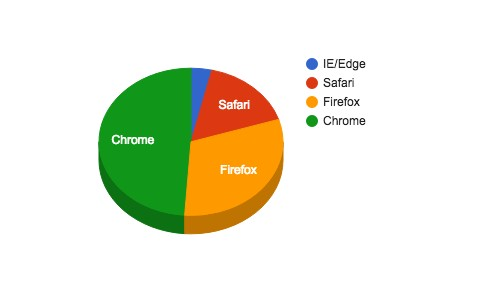
With some chart types, giving the chart area 100% of the drawing area leaves no room for titles or axis labels, so you need to adjust the option values to get the best results in each case.
These two charts have the same dimensions, but the one on the right has:
,chartArea:{left:'8%',top:'10%',width:'90%',height:'75%'}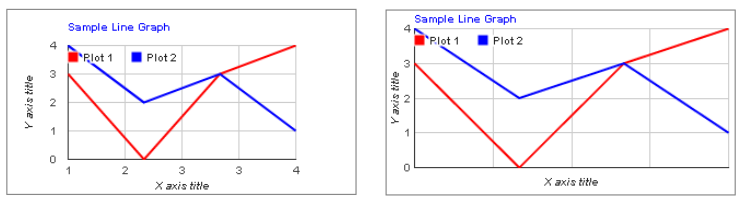
bar.groupWIdth
This option applies only to bar charts, and controls the width of a group of bars, with the width specified in pixels, or a percentage of the available width for each group, where '100%' means that groups have no space between them. The chart on the left does not have this option. The chart on the right does:
,bar:{groupWidth:'85%'}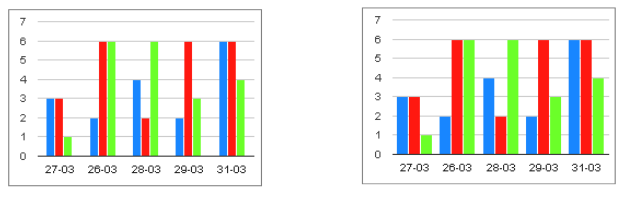
curveType
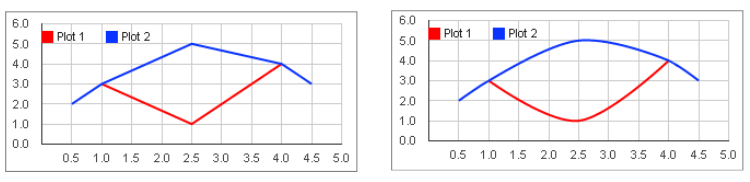
This option applies only to line charts, and controls the curve of the lines.
,curveType:'function'It works well for line charts that don't have many data points, creating smooth curves. The chart on the left does not have this option. The chart on the right does:
enableInteractivity
You can switch off the tooltips for a chart using this option.
,enableInteractivity:falseisStacked
You can create a stacked area chart using this option. The chart on the left does not have this option. The chart on the right does:
,isStacked:true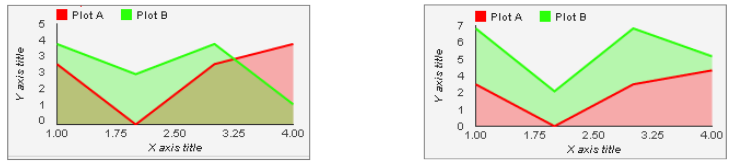
Trendlines
Many chart types support automatically drawing trendlines, for example:
,trendlines: { 0: {}}Check the documentation at https://developers.google.com/chart/interactive/docs/gallery/trendlines
Dynamic Extra Options
If the Extra Options field begins with "Select", it is assumed to be a SQL query, and will be resolved to form the extra options string.