The Chart List
When you select the Plotalot Component in the back end of Joomla, the first thing you see is the Chart List, where you can create new charts or edit existing charts.
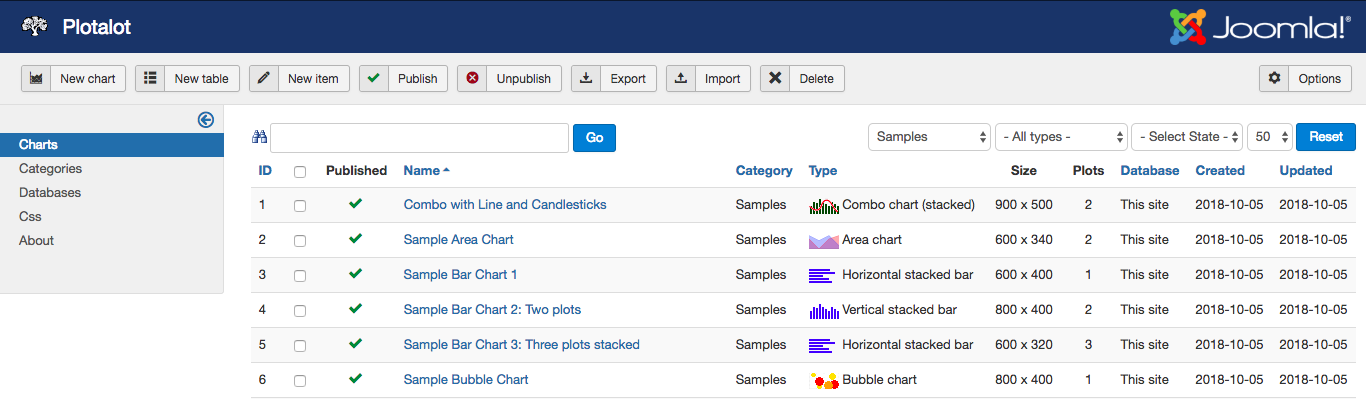
The filter buttons at the top of the chart list let you select the category, type, or published status of charts to include in the list view. You can search your charts using the search box, in which case all the other filters are ignored. The search function searches for any text anywhere in the charts, including the name, title, axis titles, extra options and SQL. Or you can enter a chart ID in the search box to quickly find that particular chart. The Reset button resets all the filters, search text and pagination, and refreshes the page.
You can delete charts but there is no undelete option. You can publish and unpublish charts. Unpublished charts are not shown on the front end of the site.
The Clear Cache button appears if any charts are currently being cached by the Plotalot plugin. Clicking the button deletes the cached charts. You might want to do that after you edit a chart that is cached so that your changes are immediately visible on the front end.
The Options button accesses the Plotalot configuration options, as discussed later.
Exporting and Importing Charts
The export and import buttons let you export selected charts in SQL format, and import SQL files containing Plotalot charts. It's an easy way to backup your charts, or move charts from one system to another.
To export charts, select the charts you want to export, and click Export. The export file is in SQL format and includes the selected charts as well as any categories they belong to, and any databases they use.
To import charts, click the Import button and select the file to import. When you click Save, the charts are imported, as well as any categories that are not already present, and any databases not already present.
When you export charts, they are exported without their unique chart ID, which means that if you re-import them back into the same system, they will be duplicated with a different chart ID. If you import them on a different system, they might well be imported with a different ID.
Categories and databases are exported with their unique ID, which means that if you import them to the same system, or another system that already has the same category or database ID's, the existing categories and databases will not be duplicated. They will only be created if they do not already exist.
Categories
Categories help you to organise your charts in the chart list. They have no other function. For example, there is no "category view" on the front end.
At installation, Plotalot installs some sample charts in the "Samples" category, and creates another category called "My Charts". You can't delete these two categories but you can rename them. "My Charts" is the default category for new charts. You can create as many other categories as you want.
You can rename charts and categories at any time. All internal linkages are by ID, not by name.
You can change or delete the sample charts. If you delete any of them, they are re-installed when you upgrade or re-install. You should not base your own charts on the sample charts as they always remain flagged as samples and might be over-written by future upgrades. Use the "Save as Copy" button to create your own copy of a sample chart. After you copy a chart, the copy is not flagged as a sample chart.