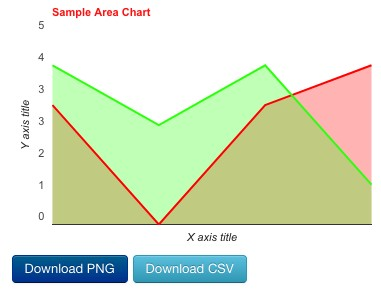
Making Charts Responsive
The first step in making charts responsive is to set the width of the chart to blank or 0 (zero). Charts that have a defined width and height will always be drawn at the specified size and will never change their size. Charts with zero width are drawn to match the size of their containing element. We can then use CSS to control the size of the containing element, and its behaviour at different window sizes.
Google charts do not automatically re-size in the way that ordinary images do. In order to be responsive, the browser must be told when to re-draw them. The Plotalot Plugin includes Javascript to do this.
This dynamic resizing works in all modern browsers, but not in IE8 or below.
The Plotalot Component view does not include the responsive Javascript. If you use the Component view to display charts of width zero, they will initially be drawn the size of their containing element (which is partially responsive behaviour) - but they will not dynamically resize if the window size changes, for example if a mobile phone or tablet is rotated.
A few templates (for example Gridbox templates from Balbooa) do not allow their grid elements to resize as the browser window resizes. Google charts cannot be made responsive in such templates.
Full Width Charts
The easiest way to make a chart responsive is to set its width to zero and use the plugin's "full_width" option. This will make the chart the full width of the article it appears in, whatever that happens to be at any given time. As the window size changes, the plugin will re-draw the chart. In many cases this is a simple and effective solution.
Normally charts are drawn in a
Sizing Charts With CSS
If you want to control exactly how your charts resize you can use CSS. Plotalot always draws charts in a
HTML:<div id="chart_17" style="display:inline-block"></div>
CSS:#chart_17 {height:200px; width:350px;}
You can define your chart
In this example, the chart is initially set to 350 x 200 pixels. But when the screen width is below 750 pixels, the height changes to 150px and the width changes to 100%, meaning that it will occupy the full width of its containing element.
#chart_17 {height:200px; width:350px;}
@media screen and (max-width:750px)
{
    #chart_17 {height:150px; width:100%; }
}
Two Charts Side-by-Side And Responsive
Let's put two charts side-by-side. This time we'll use the plugin's "class" parameter instead of targeting the charts by ID.
{plotalot id="40" class="half"} {plotalot id="42" class="half"}This results in two
<div id="chart_40" class="half"></div>
<div id="chart_42" class="half"></div>
On a wide enough screen, we want them to sit side-by-side. But on a small screen, we want them to be full width, one below the other. This CSS will do that:
.half {display:inline-block; height:200px; width:48%;}
@media screen and (max-width:750px)
{
    .half {height:150px; width:100%;}
}
On a wide enough screen, each chart will be a little less than half the width of the page, allowing them to sit side by side. As the screen width reduces they will reduce proportionally, remaining remaining side-by-side until the window falls below 750 pixels, at which point both charts become 100% wide, forcing them to flow one below the other.
For non-trivial layouts, you need to be careful that your article editor does not add unwanted html elements around or between your charts. Some wysiwyg editors add lots of
and
Multiple Responsive Charts On The Same Page
You can have multiple responsive charts on the same page, but only if they are shown by a single article or module. If you combine charts from more than one article (or module) on the same page, only the charts in one of the articles will be responsive.
STYLING THE PNG AND CSV BUTTONS
The PNG and CSV links can include HTML, so you can specify the links as buttons with CSS classes. For example, if your template loads bootstrap.css, you can use the "btn" classes, like this:
<button class="btn btn-primary">Download PNG</button>and
The buttons are wrapped in a <div> of class "pl_pbuttons". The PNG button is wrapped in a <div> of class "pl_plink", and the CSV button is wrapped in a <div> of class "pl_clink".
Styling the PNG and CSV Buttons
The PNG and CSV links can include HTML, so you can specify the links as buttons with CSS classes. For example, if your template loads bootstrap.css, you can use the "btn" classes, like this:
button class="btn btn-primary">Download PNG</button>and
<button class="btn btn-info">Download CSV</button>The buttons are wrapped in a <div> of class "pl_pbuttons". The PNG button is wrapped in a <div> of class "pl_plink", and the CSV button is wrapped in a <div> of class "pl_clink".