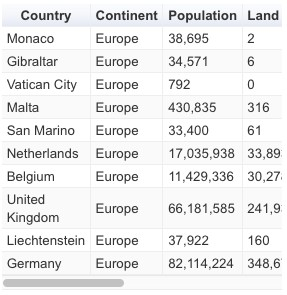
Google Tables
Google tables are constructed using the Google Charts API. Plotalot constructs the Javascript and the Javascript data object, and the Google Javascript running in the user's browser constructs the HTML using <table>, <tr>, and <td> elements. These tables provide scrolling, paging, sorting, and other active features.
Clicking on a column heading dynamically sorts the rows by that column. Numeric columns sort numerically if the data in the column is numeric. Note that numbers that include commas are treated as strings and will not sort as you would expect. See the Number Formatting section below for details.
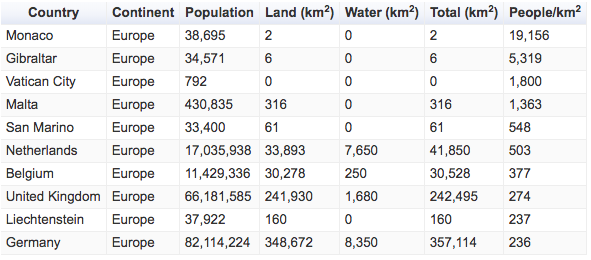
The following additional fields are shown for Google tables.
Width and Height
If you leave these fields blank, the table takes as much space as it needs. If you enter numbers (in pixels) in either of these fields, the table is contained within the dimensions specified, with scrollbars if necessary.
Extra Options
If you can find your way around the Google Charts API Reference documentation, you can manually add additional options here. There are more details and examples in the Extra Options section. Plotalot cannot validate the options you enter, so you can easily create Javascript errors here.
You could enable page-forward and page-back buttons with:
,page:'enable'
CSV Link
If you have the Plotalot Plugin, you can add a link below the table to download a Comma Separated Variable .csv file containing the table data. The link can include HTML, so it can be something like <button>Download CSV</button>. Leave this field blank for no CSV link.
Classes and Styling
Google tables assign default class names to most table elements. The table editor lets you enter your own class names to replace the default Google classes, in case you need different styles in different tables. Note that the <table> element itself always has class "google-visualization-table-table". It can't be changed.
| Name | Element | Default Class |
|---|---|---|
| Heading row | <tr> elements in <thead> |
google-visualization-table-tr-head |
| Odd rows | <tr> elements of odd rows in <tbody> |
google-visualization-table-tr-odd |
| Table row | <tr> elements of even rows in <tbody> |
google-visualization-table-tr-even |
| Selected row | <tr> of the selected row |
google-visualization-table-tr-sel |
| Hover row | <tr> of the row hovered over |
google-visualization-table-tr-over |
| Header cell | <td> elements in <thead> |
google-visualization-table-th |
| Table cell | <td> elements in <tbody> |
google-visualization-table-td |
| Row number cell | The first <td> of each row |
google-visualization-table-seq |
If you only have one table, or if you want all of your Google tables to have the same style, there is no need to override the default class names. You can just make your own CSS styles override the Google styles.
The Plotalot front end CSS file is loaded for Google tables, so you can add your own styling there.
Google tables can be tricky to re-style. Use your browser developer tools to see the classes applied to the various elements, and the CSS precedence required to override them.
Examples
Override the background colour for the odd and even rows:
tr.google-visualization-table-tr-even {background-color: pink}
tr.google-visualization-table-tr-odd {background-color: yellow}
Override the background colour for the heading:
This is more complex because Google assigns the class "google-visualization-table-tr-head" to the <tr> element, and "google-visualization-table-th gradient" to the <th> elements. To assign new colours and remove the gradient, we need:
tr.google-visualization-table-tr-head {background-color:black;color:white}
tr.google-visualization-table-tr-head th.gradient {background-image:none}
Responsive Behaviour
On narrower screens, Google tables acquire a horizontal scrollbar, which some people regard as responsive behaviour, and some don't.