The Chart Editor
Clicking on one of the charts in the Chart List takes you to the chart editor. The chart editor is organised as five or more tabs at the top of the page, and three or four tabs at the bottom.
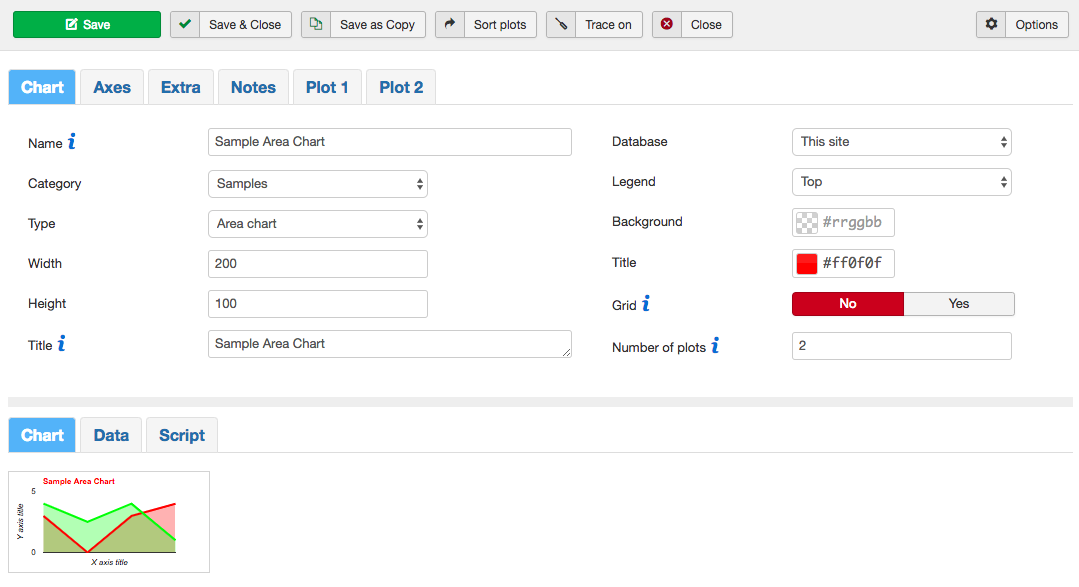
This section is about charts. Tables and single items are discussed later.
The Chart Tab
This tab has options that affect the overall "look and feel" of the chart, including its size, type, background colour, and which database it retrieves data from.
The Axes Tab
This tab is used to customise the X and Y axes. You can use the fields here to label the axes, and to extend the range of the chart. If you leave the axis ranges blank, Plotalot will automatically assign the chart ranges to the limits of the data retrieved. There are some differences in the way these options work in different charts.
The Extra Tab
The extra tab is for advanced options that are described later. All charts work without anything being entered on this tab.
The Notes Tab
This is a single text area for your own use, for example to record changes to the chart over time, or notes about how it works. It is not part of the chart itself. It can contain a virtually unlimited amount of text.
The Plot Tabs
A plot defines the SQL query that retrieves one set of data values. All charts have at least one plot, and some chart types can have many plots. Each plot has a name, a colour, and some styling options that vary by chart type. For chart types that can have more than one plot, you can set the number of plots on the Chart tab.
The Chart Display Area
The display area shows any errors or warnings that apply to your chart, followed by three tabs. The Chart tab shows the chart itself, if it can be drawn. Each time you click Save, the chart is re-drawn using the options you have set. Developing a chart is an iterative process of setting options and clicking Save to see the results.
The Data tab shows the data that was returned from the database using the query or queries that you specified. By default only 20 rows of the data are shown because usually you are only interested in the formatting. A dropdown list at the right hand side of the data tab lets you select the number of rows to show.
The Script tab shows the Javascript that Plotalot generated for your chart. The Javascript tells the Google Charts API how to draw your chart. It's sometimes useful to see the Javascript when resolving problems or when working with Extra Options.
If Trace mode is enabled, the trace file is loaded into the Trace tab.
The Data, Script and Trace tabs are tools to help you develop your charts. They are not shown on the front end.
The Toolbar Buttons
Save saves the chart and returns to the chart editor.
Save and Close saves the chart and returns to the chart list.
Save as Copy saves the chart as a completely new chart and returns to the chart list. If you save a sample chart as a new chart, the new copy is not flagged as a sample chart.
Sort Plots saves the chart and returns to the chart editor with the plots sorted in ascending order by name. If you need to delete a plot, you can rename it to "zzz" and use the Sort Plots button to make it the last plot, then reduce the number of plots by one.
Trace On enables trace mode, which saves a lot of details about Plotalot's internal workings and calculations. Trace mode is mostly used for development and support of Plotalot, but is also useful to advanced users. When trace is enabled, the Trace On button changes to a Trace Off button, and trace output is included in the Trace tab in the display area. Note that the chart is NOT saved when you click the Trace On or Trace Off button. Save any changes first, using the Save button.
Cancel returns to the chart list without saving the chart.
Common Chart Options
Name
The chart name is only used for your reference. It does not appear in the chart itself.
Chart Type
The chart type defines how the data will be displayed. Each type of chart relies upon its data being in a particular format. For example line charts require two numeric columns.
Legend
The Legend shows which colour refers to which plot. You can set it to None, in which case it won’t be displayed at all, or you can define where you want it to show. Not all of the legend options work with all chart types. Try them all to see which one works best for your chart.
Width and Height
The size of the chart, specified as x pixels wide by y pixels high. You can make charts responsive by setting the width to 0, but see the section Responsive Charts for details.
Database
To use a database other than the current Joomla site you must first create it using the "Databases" menu. You will then be able to select it here.
Title
The title displayed at the top of the chart. It can be a fixed string such as "My Chart" or it can be the result of a SQL query.
Title Colour
The title colour box is a colour picker. Click it to pick a colour or type in a hex colour code. If you leave the colour blank, the default is black.
Background
Choose or enter a colour for the chart background, or blank the field out to make the chart transparent. When the chart is transparent, you can place an image behind it to achieve gradient or stripe effects.
Grid
The grid can be on or off. When it is on, a faint grid is added to the chart background. The number of grid lines is controlled by the X Labels and Y Labels options.
Extra Options
If you can find your way around the Google Charts API Reference documentation, you can manually add additional options here. There are more details and examples in the Extra Options section. Be aware that Plotalot cannot validate the options you enter, so you can easily create errors here.
Extra Columns
A comma delimited list of additional column types. See the Extra Columns section for an example.
Extra Javascript
If you know Javascript there are many ways to enhance charts, for example adding "formatters" and interactive features. Please see the Extra Javascript section for more details.
CSV Link
If you have the Plotalot Plugin, you can add a link below the chart to download a .csv file containing the chart data. The link can include html, so it can be something like . Leave this field blank for no CSV link. The CSV link is supported only by the plugin. It does not work in the component view.
PNG Link
If you have the Plotalot Plugin, you can add a link below the chart to download a .png image of the chart. The link can include html, so it can be something like . Leave this field blank for no PNG link. The PNG link is supported only by the plugin. It does not work in the component view. Not all chart types support the conversion to .png images. If you see the error "getImageURI is not a function", the chart does not support this feature. This feature does not work in the IE and Edge browsers.
Locale
You can specify the Locale used by the Google Charts API, which affects the formatting of currencies, dates, and numbers. If you don't specify a Locale, the Locale specified in the Plotalot Component Options is used.
Number of Plots
The number of plots field determines the number of plot tabs shown in the chart editor. Set the number of plots you need and click Save. The editor screen will be re-displayed with the new number of plot tabs. Some chart types can have multiple plots and some can only have one. The maximum is 20.
Design Pattern
For some charts you can select the Classic or Material version of the chart. Please see below for more information.