The Plotalot Plugin
The best way to show charts on your site is to use the Plotalot Plugin and include charts in articles.
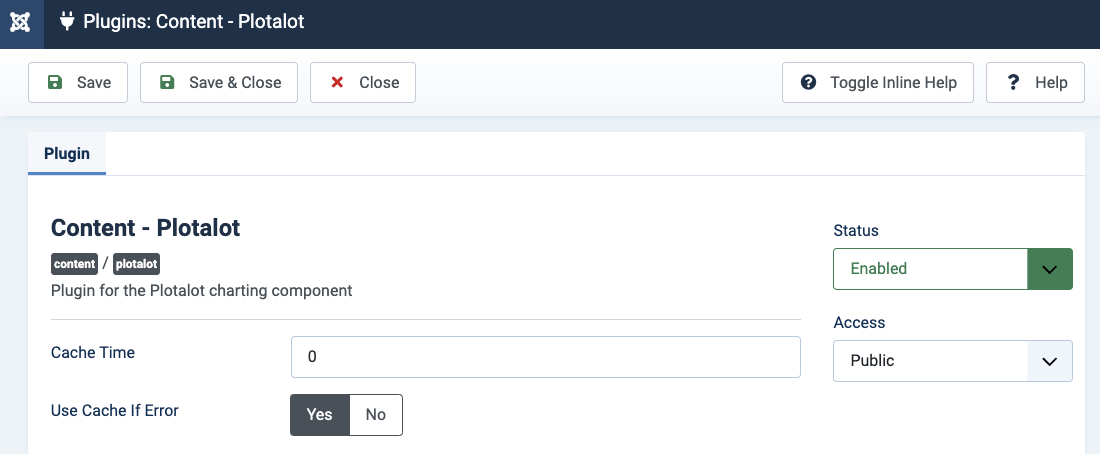
Install the Plugin and make sure it is enabled.
Once you have defined a chart and installed and enabled the plugin, it's easy to add the chart to an article. In its simplest form, the syntax to include the chart with an ID of 1 in an article is simply:
{plotalot id="1"}The chart ID must be enclosed in double quotes. Note that Joomla Article Text Filtering and some article editors can interfere with the quotes, causing the chart ID not to be recognised. See the Troubleshooting section for more details.
The plugin cannot display the same chart more than once on the same page. If you need to do that you must make copies of the chart so that each instance has a different chart ID.
Full Width
By default, the plugin draws charts in a containing <div> like this:
<div style="display:inline-block;">...</div>This makes the <div> the size of the chart, and allows other content to flow around the chart. The plugin has an optional parameter, "full_width", which removes the "display:inline-block;" attribute. The <div> now defaults to display:block, and occupies the full width of its container.
{plotalot id="1" full_width}Results in this:
<div>...</div>If the chart has its width set to blank or zero, the chart will now occupy the width the container, whatever that may be. If the window resizes (for example when a mobile device is rotated), the chart will be re-drawn at the new width. This is a quick and easy way to make charts responsive. A more powerful method is described later.
Auto-Refresh
The "refresh" parameter automatically re-draws charts at regular intervals. The chart data is re-loaded from the server using Ajax, and the chart is re-drawn in-situ without re-drawing the entire page. This works for all charts and Google Tables, but not for Plotalot tables, Responsive tables, or single items.
{plotalot id="42" refresh="30"}In this example the chart will re re-drawn using the latest data every 30 seconds. You can see auto-refresh in action by making a Gauge chart with a query of:
SELECT "Time", SECOND(CURRENT_TIME())Adding a Class
The "class" parameter also removes the style="display:inline-block;", and adds a class instead.
{plotalot id="1" class="half"}Results in this:
<div class="half">...</div>Error Handling
Some kinds of errors can prevent a chart being drawn. You may want to specify what replaces a chart if it cannot be drawn, for example if its source database goes offline, or its data feed fails,. If you do not specify custom error handling the default is for the plugin to report the error like this:
{Plotalot Plugin: chart 6 - No rows}This is useful during development but is not ideal for a live site. You have several options.
You can specify an image to be shown in place of the chart. For example:
{plotalot id="42" error_img="images/stories/alternate_image.jpg"}Or you can specify some text to appear in place of the chart. For example:
{plotalot id="42" error_txt="Sorry, there is no chart data today"}Or you can allow the plugin to use the last cached version of the chart. See "Caching" below.
Caching
The Plotalot Plugin can cache your charts on your server, reducing the amount of work needed to re-produce the chart for the next user who requests it. For charts that use complex queries or charts that don't change very quickly, this is a worthwhile optimisation.
When it produces a chart, Plotalot first has to execute the database query(ies), then analyse the data and produce the Javascript that will draw the chart. The Javascript becomes part of the web page delivered to the browser, and the browser executes the Javascript to render the chart. When the Plotalot Plugin caches a chart, it stores the Javascript in a file on the web server. If the same chart is requested within the allowed cache time, Plotalot retrieves the text file instead of accessing the database and creating the chart from scratch.
The "Use Cache If Error" option determines if the plugin can use an old, expired, cached version of the chart if a new chart cannot be drawn. For example, if the data feed to your database fails, it might be better to show the most recent chart rather than an error image or error message. If set to "Yes", this option takes precedence over the "error_img" and "error_txt" parameters.
You can specify the "Cache Time" and "Use Cache If Error" options globally for all charts in the Plugin Manager, or on the plugin call. Parameters passed on the plugin call take precedence. To enable caching for all charts, set the "Cache Time" in the Plugin Manager to a non-zero number. This is the number of seconds the cached version is valid.
Here's how to specify the options on the plugin call:
{plotalot id="42" cache_time="60" use_cache_if_error="yes"}Summary of Plugin Parameters
| Parameter | Notes |
|---|---|
id="nnn" |
The chart number to draw. This parameter must always be specified. If the value is non-numeric, it is resolved as a request variable. |
cache_time="nnn" |
Number of seconds to re-use charts without re-generating them. You can set the default for this parameter in the Joomla Plugin manager. |
use_cache_if_error="yes" |
"yes" means that an expired cached chart can be used if the chart cannot be drawn. You can set the default for this parameter in the Joomla Plugin manager. |
full_width |
Draws the chart in a <div> without style="display:inline-block;". |
error_img="xxx" |
Pathname of an image to draw if the chart cannot be drawn. |
error_txt="xxx" |
Text to be shown if the chart cannot be drawn. |
refresh="nnn" |
The chart will be re-generated and re-drawn every nnn seconds. |
class="xxx" |
A CSS class to add to the chart <div> element. |
csv="xxx" |
Options for CSV data downloads. csv="my_file_name.csv" sets the name of the downloaded file. To be recognised as a filename, the name must have the .csv extension. The default filename is "chart_data.csv". csv="headrow" adds the column names as the first row of the file. csv="sep" adds an extra first row "sep=," (without the quotes) which forces Microsoft Excel to interpret commas as separators. Do not use this unless your users exclusively use MS Excel as other software will treat this as a data line. Any combination of options can be used by separating them with commas, for example csv="my_file_name.csv ,headrow,sep". |
png="xxx" |
Options for PNG image downloads. png="my_file_name.png" sets the name of the downloaded file. To be recognised as a filename, the name must have the .png extension. The default filename is "chart.png". |
P000 - P999 |
Parameters that can be passed into the chart query, as described in the Advanced Techniques section. |